
Wren 0.8.0 · 14 November 2026
Hello, Wren
The first release of Wren, the browser that was Flow, rewritten from the ground up. Here’s everything it comes with.
This is a beta
Some things are unfinished, and you may find bugs. Please report them on GitHub. Wren updates itself as fixes come out.

Spaces
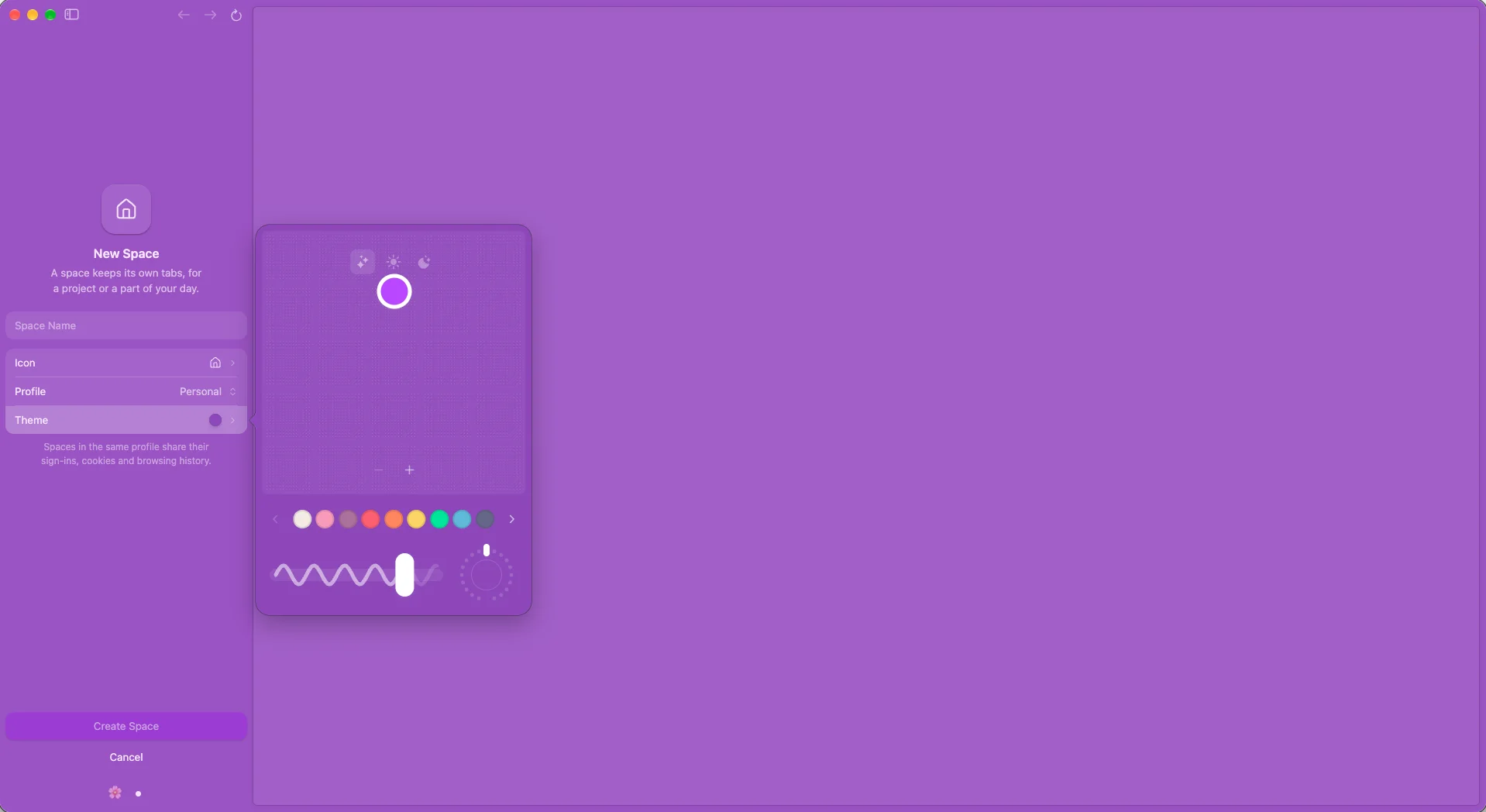
A space for each part of your life. Each space keeps its own tabs, pins, name, icon and theme. Swipe the sidebar, press ⌃1 to ⌃9 or turn a mouse wheel sideways to switch.
A profile for each space. Every space belongs to a profile, with its own cookies, history and extensions, so work and personal accounts stay signed in side by side. Several spaces can share one profile.
Themes. Pick up to three colours from presets or your own, how strong they are and how much grain. Each space can be light, dark or match your Mac.
Icons and emoji. Give each space an icon or an emoji from a picker you can search.
Tabs
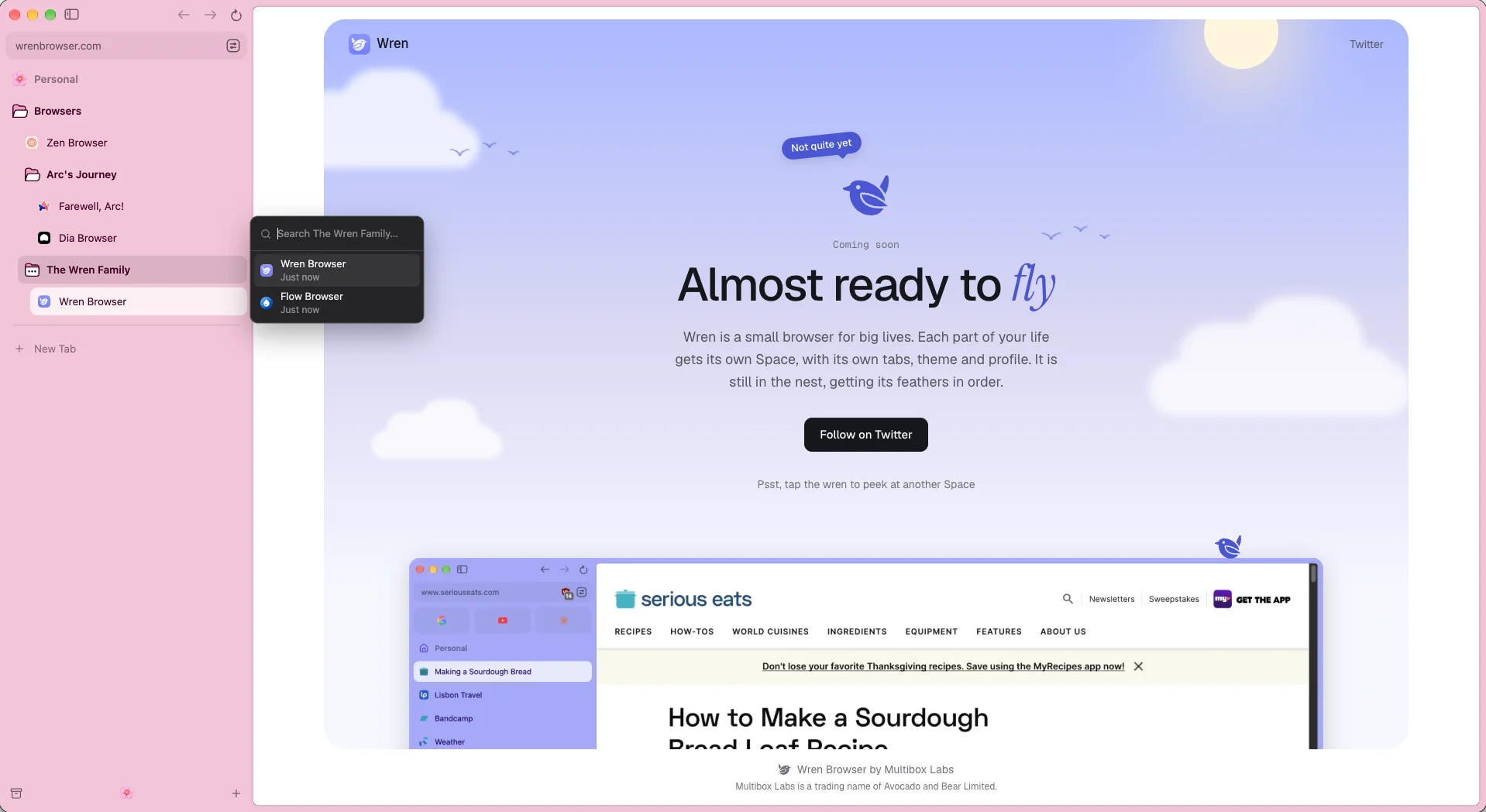
Tabs in the sidebar. Keep the sidebar open beside the page, or hide it and it slides out when you move to the window’s edge. Drag tabs to reorder them, or onto a space in the space switcher to move them there.
Pins and favourites. Pins sit above your tabs and open in place. Favourites sit above them as tiles, three to a row.
Nestable folders. Keep pins in folders, and folders inside folders. Rest on a folded folder to search what’s in it.
Tab groups. Group open tabs under a name and a colour.
Split tabs. Open two tabs in split view, side by side or stacked, and drag the divider to fit.
Auto-archive tabs. A tab you haven’t pinned closes after 12 hours untouched. Archive Tabs After in Settings sets another time. Clear, on the line over your tabs, closes every tab but the one you’re on.
Tab switcher. ⌃Tab flicks back to your last tab. Keep Control held, and the five tabs you used last show as cards to pick from.
Several tabs at once. Hold ⌘ or ⇧ and click tabs to mark them, then drag, close, pin or group them together.
Duplicate a tab. ⌥⇧D opens a copy of the tab you’re on. A split view is copied whole.
Sound, camera and microphone. A tab playing sound shows a speaker that mutes it. A tab using your camera, microphone or screen says so beside its icon.
Search and extensions
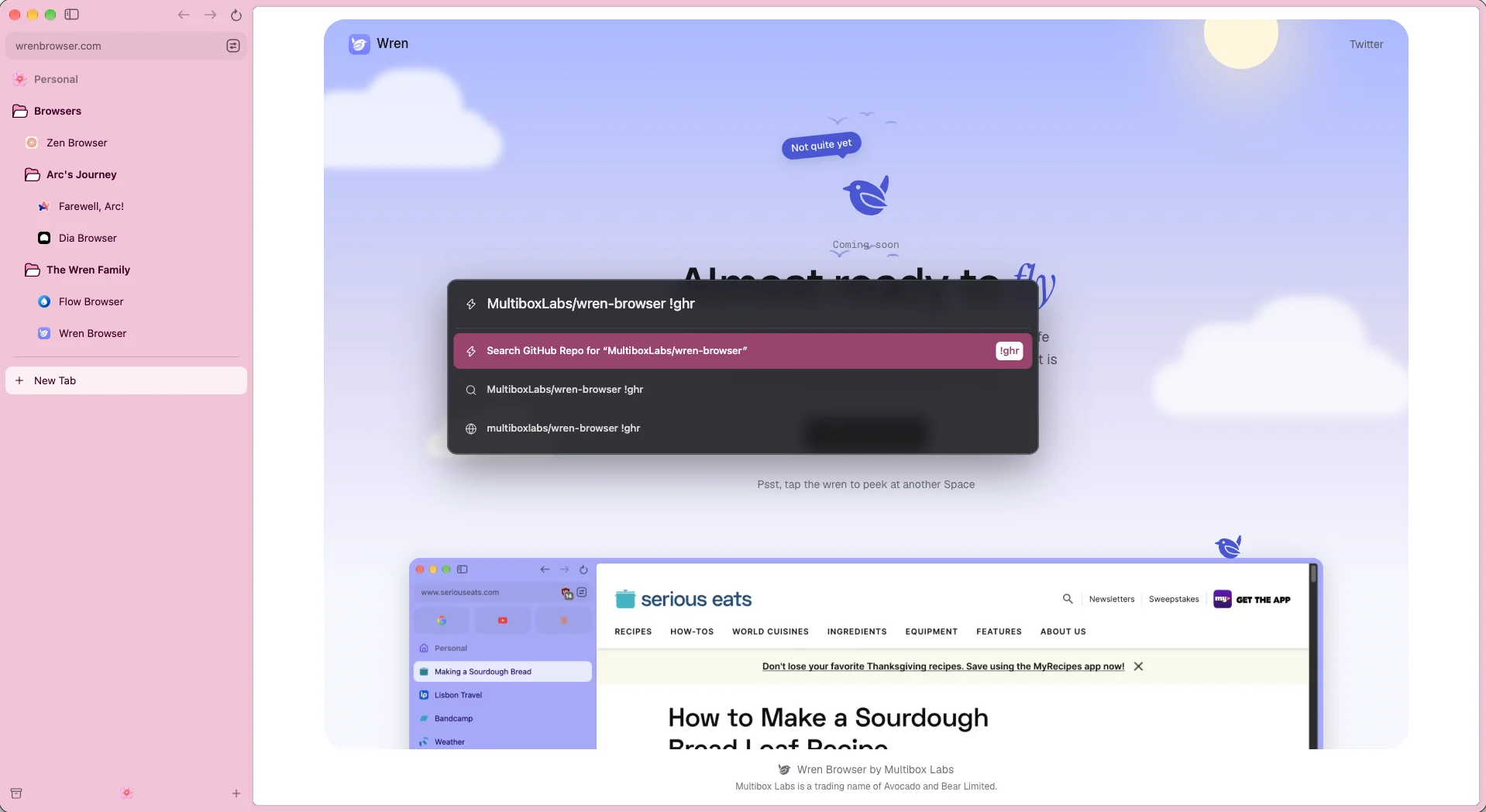
One box for everything. Search, history, open tabs and sums in the omnibox. Press Tab on a search engine to search it straight from the box.
Bangs. More than 10,000 of them. !yt lofi beats searches YouTube, and !gh opens GitHub.
Full extension support. Full compatibility with extensions from the Chrome Web Store, side panels included.
Moving in
Bring your things over. Wren can bring over bookmarks, history and cookies from the browser you use now, and spaces, pins and extensions where it has them. Each profile comes over into a profile of its own.
Set up in a minute. The first time you open Wren, it offers to bring your things over, gives your first space an icon and a colour, asks whether to block ads, and offers to be your default browser.
Later, too. The Wren menu has “Import from Another Browser” and “Set as Default Browser”.
Privacy
Ad blocking, on from the start. uBlock Origin comes with Wren and is on in every new profile, and in incognito windows. Each profile can turn it off in the Library.
What Wren sends. Wren never sends what you browse. It sends anonymous counts of which features you use, and crash reports. Turn off Help Improve Wren in Settings, and it sends nothing.
The app
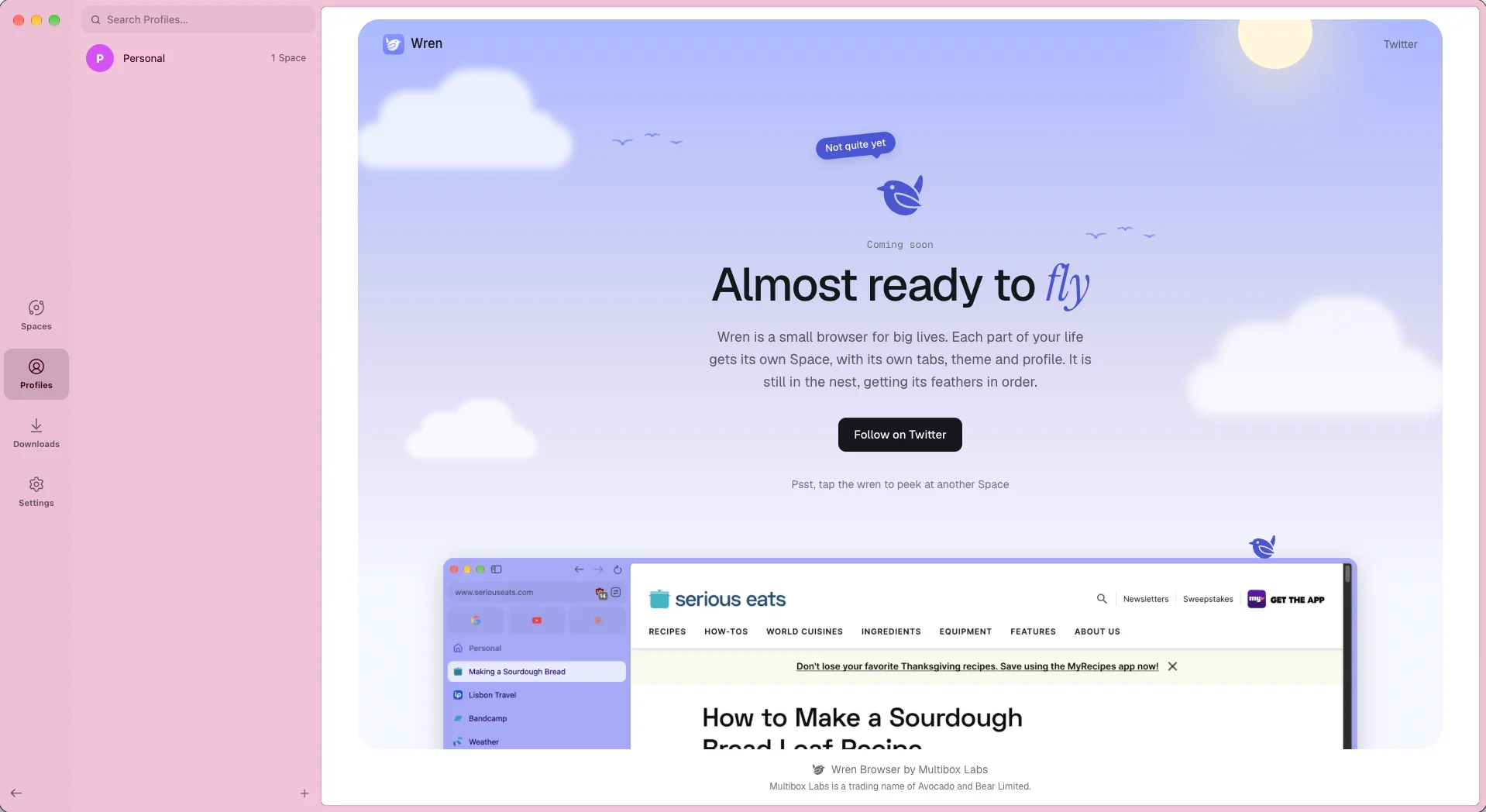
The Library. Open it from the bottom of the sidebar to manage your spaces, profiles, downloads and settings.
Downloads. Your latest downloads show above the Library button, with the whole history in the Library.
Address bar. The page’s address shows in the sidebar, or above the page. Choose with Address Bar in Settings, or press ⇧⌘D.
Window margins. The page sits inside a gap round it. Turn off Window Margins in Settings, and it fills the window.
Updates. Wren downloads updates in the background and installs them as it restarts. Beta Updates in Settings gets new versions early.
Twig & Trill. Type wren://game into the address bar and help a little wren build a nest before the weather turns.
Wren updates itself. New here? Get the latest version
Download for macOS